If your podcast isn't on YouTube yet, this is the quickest way to fix that. Get Subwave on iOS, Android, or Web and follow along.
With Subwave and an RSS feed, you connect once and every new episode appears on your YouTube channel automatically. Here's how to set it up.
What is an RSS feed and why does it matter?
Your RSS feed is a unique link that Subwave generates for your channel. Every time you publish a new episode, the feed updates and any platform connected to it syncs the new episode instantly. You upload once, it shows up everywhere. That's the whole idea.
Step 1: Get your RSS feed from Subwave
Open Subwave and go to your channel settings. Find your RSS feed URL and copy it.
Step 2: Create a new podcast on YouTube
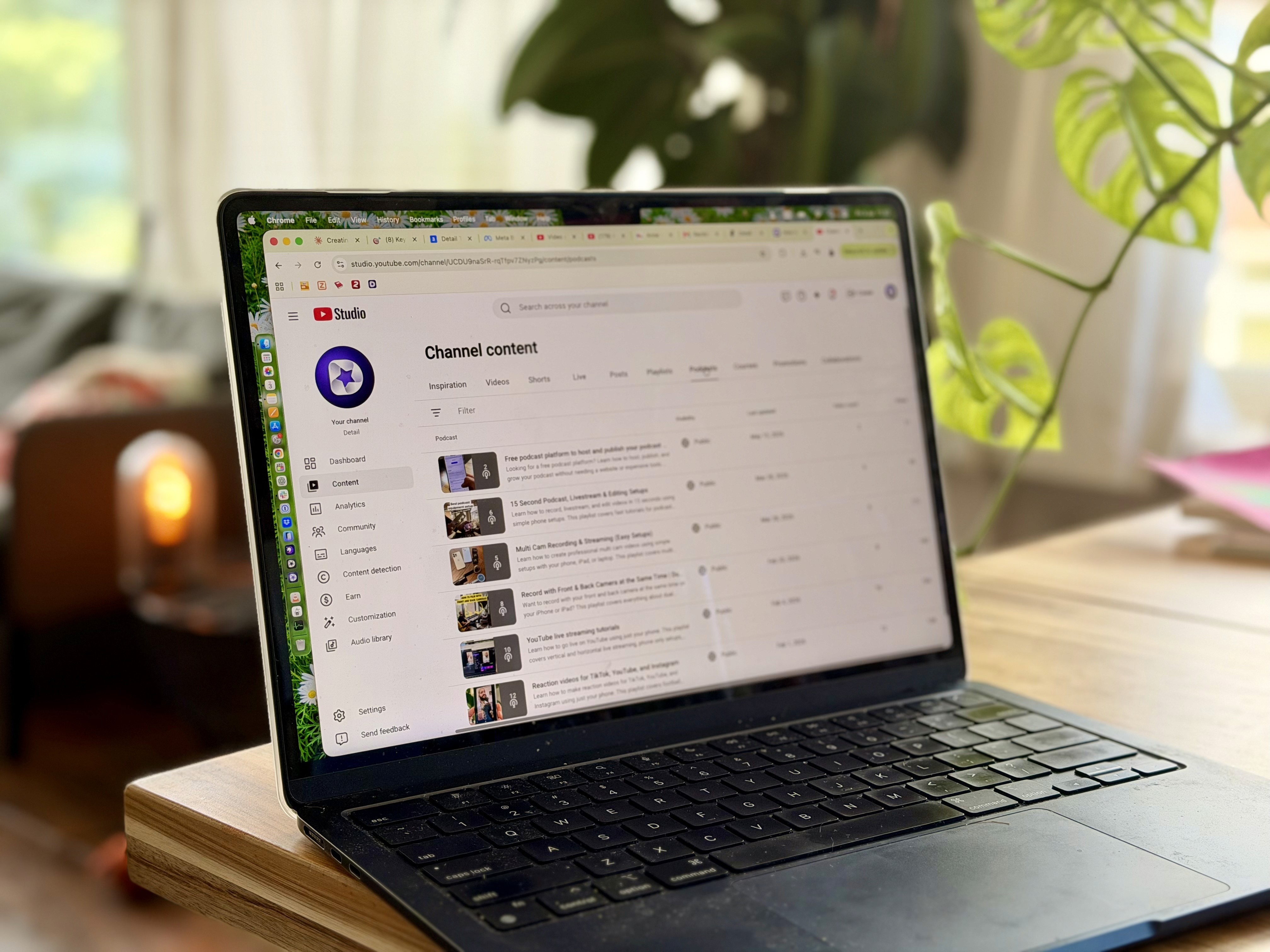
Open YouTube and tap Create, then select New Podcast. When YouTube asks how you want to set up your podcast, tap Submit RSS Feed and paste the link you copied from Subwave.
Step 3: Verify your email
YouTube will send a verification code to the email linked to your account. Grab that code and enter it back in YouTube to confirm you own the podcast.
Step 4: Let it process
Once verified, your feed is connected. If you're just starting out it'll be quick. If you have a lot of episodes already, give it a little time to pull everything in.
A note on video vs audio episodes
Subwave supports both audio and video podcast episodes. If you upload a video episode, YouTube will generate a thumbnail from it but display it as a static image rather than playing the full video. If you want the full video to play on YouTube, you'll want to upload it there directly as well. For audio distribution though, the RSS connection handles everything automatically.
Step 5: Publishing going forward
From here you don't have to do anything extra. Every time you publish on Subwave, YouTube pulls in the new episode on its own. No repeat uploads, no manual work.
Your podcast deserves to be everywhere. Get Subwave on iOS, Android, or Web and start publishing everywhere at once.