By
Diego
on
Dec 4, 2025
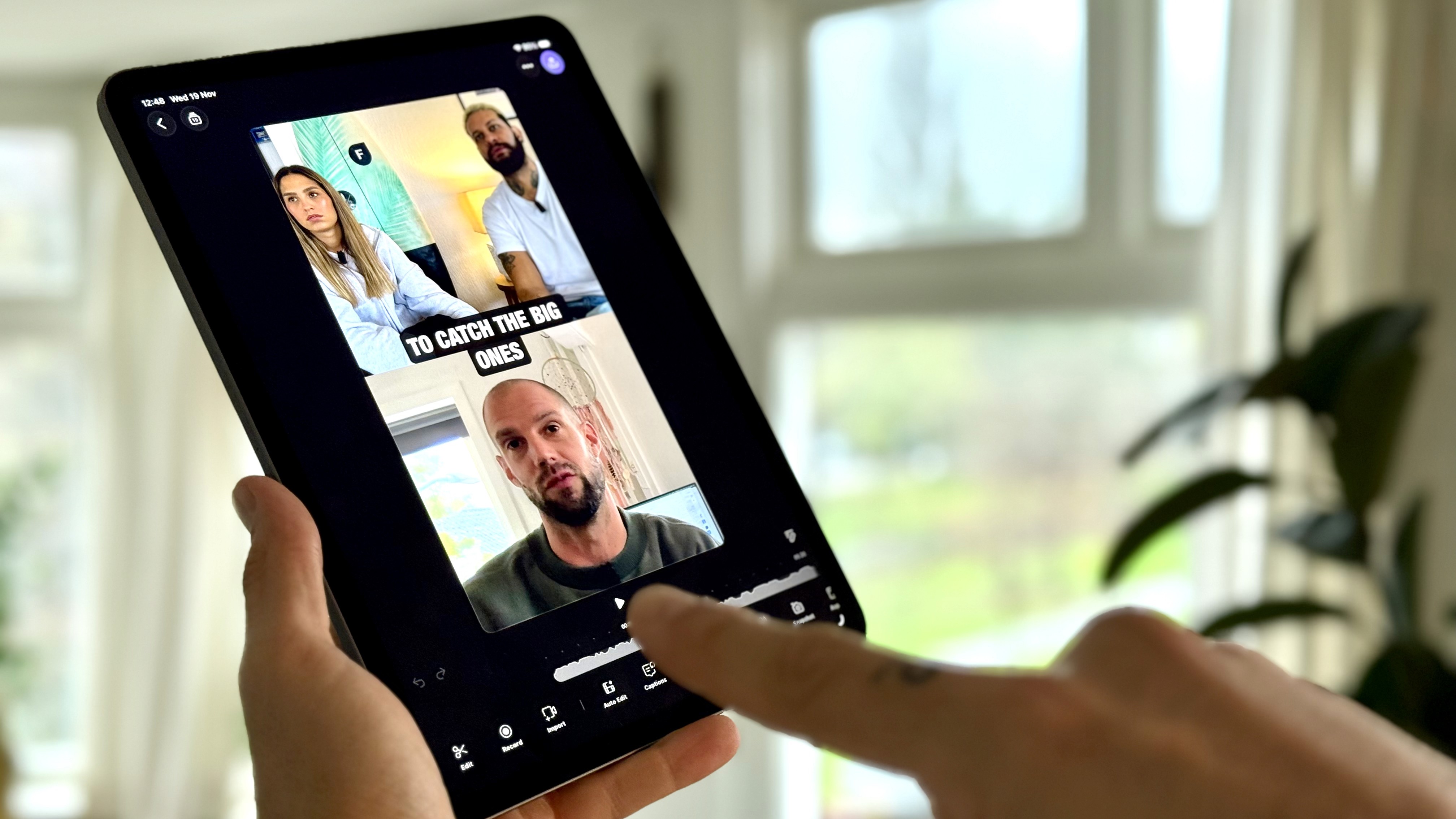
Detail is iPad App of the Year! Apple selected Detail as the Best App for iPad on the App Store. Whether you’re on an iPad or an iPhone, Detail turns your iOS device into a complete video creation studio. You can film, edit, monitor your camera, record podcasts, create reaction videos, and even produce multi-angle content using the devices you already own.
If you’re looking for the best ways to use your iPad or iPhone for video, here are five powerful features that show exactly why Detail earned the title.
1. Use your iPad as a wireless monitor for your iPhone
Filming yourself with the back camera of your iPhone gives you the best quality, but you usually lose the ability to see your shot. Detail fixes that instantly.
By opening Detail on both devices, your iPhone connects wirelessly to your iPad and turns the iPad into a real-time monitor. You can check your framing, adjust your position, fix your lighting, and even start recording directly from your iPad.
This setup is perfect when filming alone: talking-head videos, cooking demos, music performances, fitness content, beauty tutorials, and more. You always stay in frame without needing to walk back and forth.
Watch how it works:
2. Edit full videos, podcasts, and reactions directly on your iPad
The iPad’s bigger screen and fast performance make it ideal for editing on the go. With Detail, you can edit anything: talking-head videos, reactions, interviews, multi-camera podcasts, or full YouTube videos.
You can trim clips, adjust layouts, add captions, remove backgrounds, create transitions, generate short clips, or auto-edit a full project with a single tap. Touch controls make the timeline easy to navigate, and if you pair a Bluetooth keyboard, you can use shortcuts for even faster editing.
This workflow is perfect for creators who want a portable, high-quality editing setup without needing a laptop.
Video tutorial:
3. Combine your iPad and iPhone to film perfect top-down shots
Top-down recording usually requires expensive rigs or lots of adjusting. Detail makes it simple with just your iPhone and iPad.
Use your iPhone as the top-down camera, mirror it to your iPad to monitor your shot live, and use your iPad’s camera to record your reactions. This gives you a clean overhead angle plus a picture-in-picture reaction setup, all synced inside Detail.
Perfect for unboxings, recipes, DIY builds, crafting, product demos, art tutorials, and more.
Watch the workflow here:
4. Connect two iOS devices for a multi-angle recording
If you want two camera angles but don’t own multiple cameras, Detail lets you connect two iOS devices, an iPhone and an iPad, or two iPhones — to record a multi-angle video with ease.
Once connected, both devices act as separate camera sources within the same Detail project. You can use one for a wide shot and another for a close-up, or record two speakers at once for a podcast. After recording, you can switch between angles, keep a split screen, or apply layouts depending on the style you want.
This workflow is ideal for:
multi-person podcasts
interviews
product demos
behind-the-scenes content
fitness or cooking videos with two perspectives
You get a professional multi-camera setup without needing extra hardware.
Watch the step-by-step tutorial:
5. Record a podcast using your iPad’s front and back cameras
The iPad can record from both cameras simultaneously, and Detail makes full use of it. You can record a podcast with two angles using just one device:
the front camera records you
the back camera records your guest
Everything stays synced, and you can switch angles during editing, keep a split-screen view, or auto-edit the whole episode. It’s one of the simplest ways to create a professional-looking podcast setup using a single device.
Watch the tutorial:
Your iPad and iPhone are now your most powerful video tool
Whether you’re filming YouTube videos, creating reactions, recording podcasts, editing on the go, or building a multi-angle setup, the iPad or iPhone paired with Detail gives you everything you need.
If you haven’t tried it yet, download the App Store’s iPad App of the Year and unlock what your iPad can really do and download Detail


How to Film Your First YouTube Video Using Just Your Phone
Aug 21, 2026

How to Repurpose Your Videos: Turn One Recording Into Shorts, Thumbnails, Blog Posts, and Audio Podcast
Aug 29, 2025

iPhone Live Streaming Guide: React to YouTube, TikTok, or Instagram Videos in Real Time
Aug 21, 2025

How to Extract Audio from Any Video on Your iPhone
Apr 17, 2025