Detail makes it easy to turn a set of photos into a video. You can import as many photos as you want, place them directly on the timeline as clips, trim their length, add music, apply transitions, and export a finished slideshow without needing extra tools.
Step 1: Start a new project
Open Detail and tap the plus (+) button in the center of your library to start a new project. This ensures you’re working in a blank timeline before importing photos.
Step 2: Import your photos
Open Detail and tap Import. Choose Import from Photos to open your photo library. Select the images you want to use, then tap Apply.
Your selected photos will be added directly to the timeline as individual clips.
Step 3: Adjust photo length
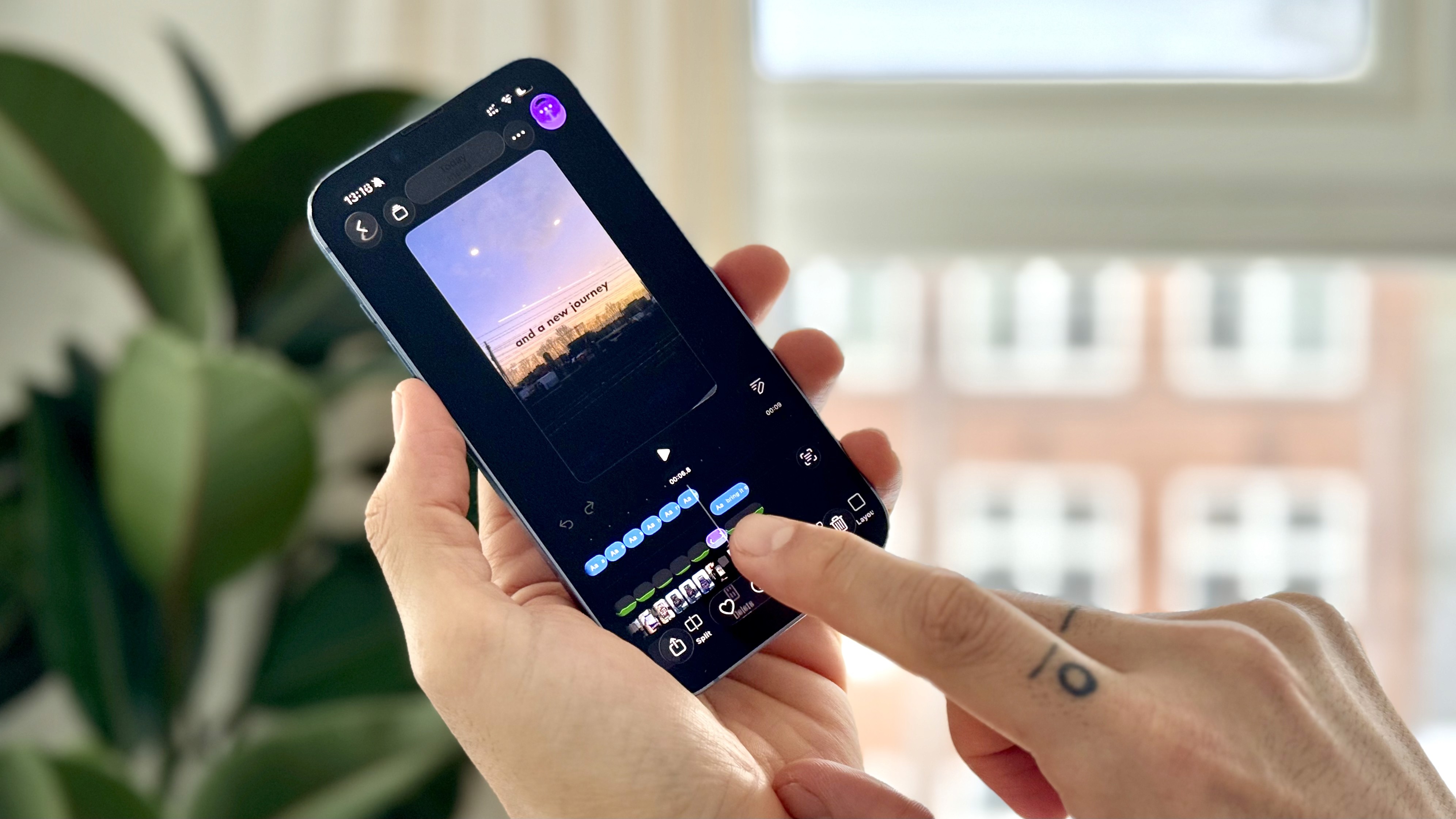
By default, each imported photo is set to around three seconds. To change this, tap a photo clip in the timeline and trim it shorter or longer.
You can quickly create a faster-paced slideshow by shortening clips, or slow things down by extending them.
Step 4: Add transitions and motion
To make your slideshow feel smoother, open Transitions and apply them between photo clips. You can also add subtle zoom-in or zoom-out effects to bring still images to life.
If you like the look, you can apply these effects to all clips at once.
Step 5: Add music
Tap Music to add background audio to your slideshow. You can choose a song, select the part you want to use, and adjust the volume so it sits nicely under your visuals.
Adding music instantly gives your photo video more energy and flow.
Step 6: Customize and export
You can still change the aspect ratio to match where you plan to post your video, add a voiceover, or include text and image overlays if needed.
When everything looks right, tap Export to save your slideshow video and share it anywhere.
This workflow is great for travel recaps, event highlights, social posts, or quick visual stories made entirely from photos.
Ready to try it? Get Detail for iOS and start turning your photos into videos in minutes.