Detail lets you record presentations with slides directly inside the app, giving you full control over layout, timing, and editing. You can record slide-based videos, edit each slide as its own clip, create shorts automatically, and even go live while presenting. This workflow works on iPhone and iPad.
Step 1: Prepare your presentation
Before importing your slides, export your presentation as a PDF.
If you’re using PowerPoint, Keynote, or tools like Canva, export your presentation as a PDF and save it to your Files app or iCloud Drive. Detail currently works with PDFs, so this step ensures your slides import correctly.
You can also import individual slide images from Photos if needed.
Step 2: Import slides into Detail
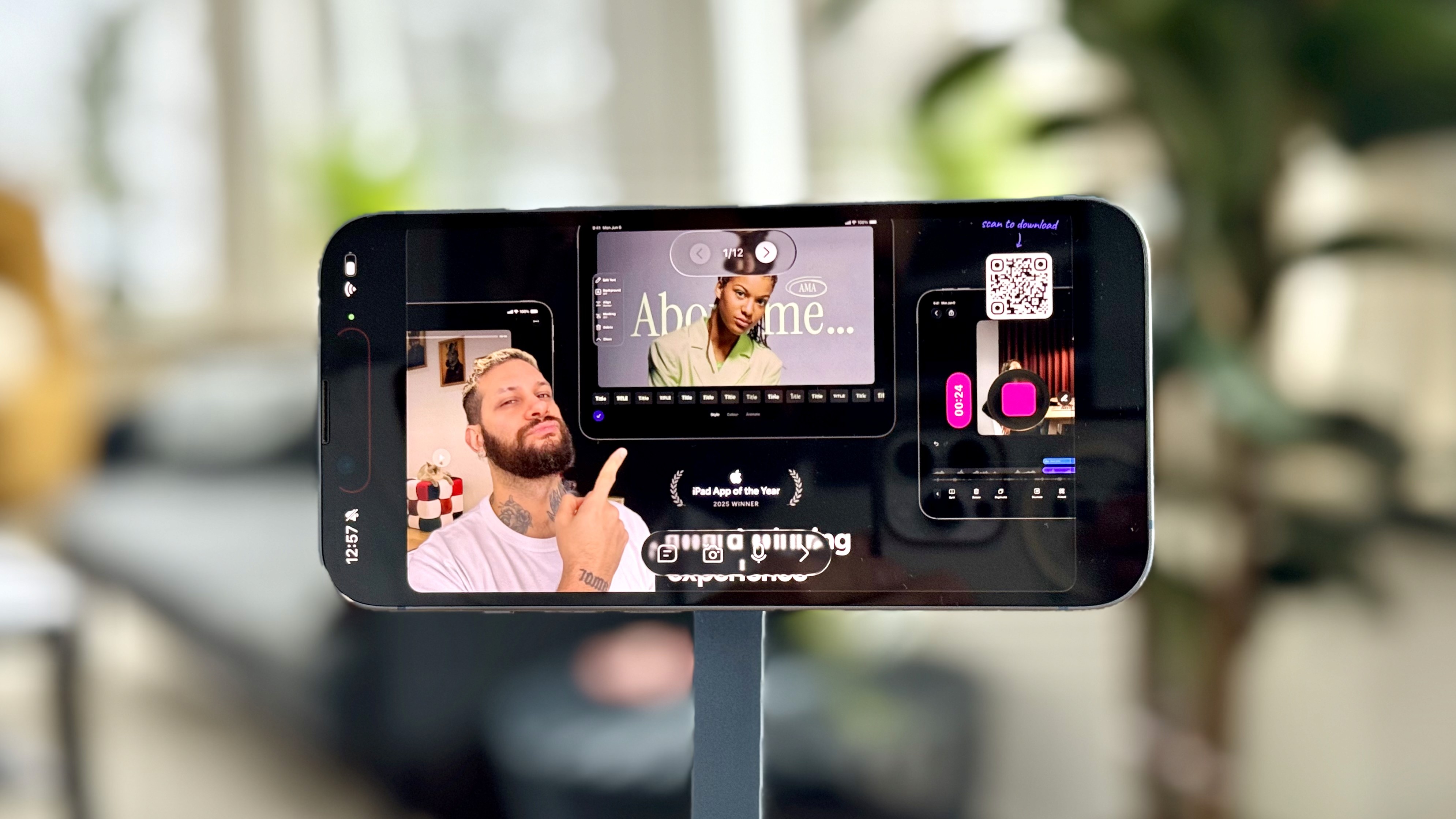
Open Detail and tap Present slides. Select your PDF from Files or iCloud Drive. Once loaded, you’ll see navigation arrows that let you move forward and backward through your slides.
Step 3: Record your presentation
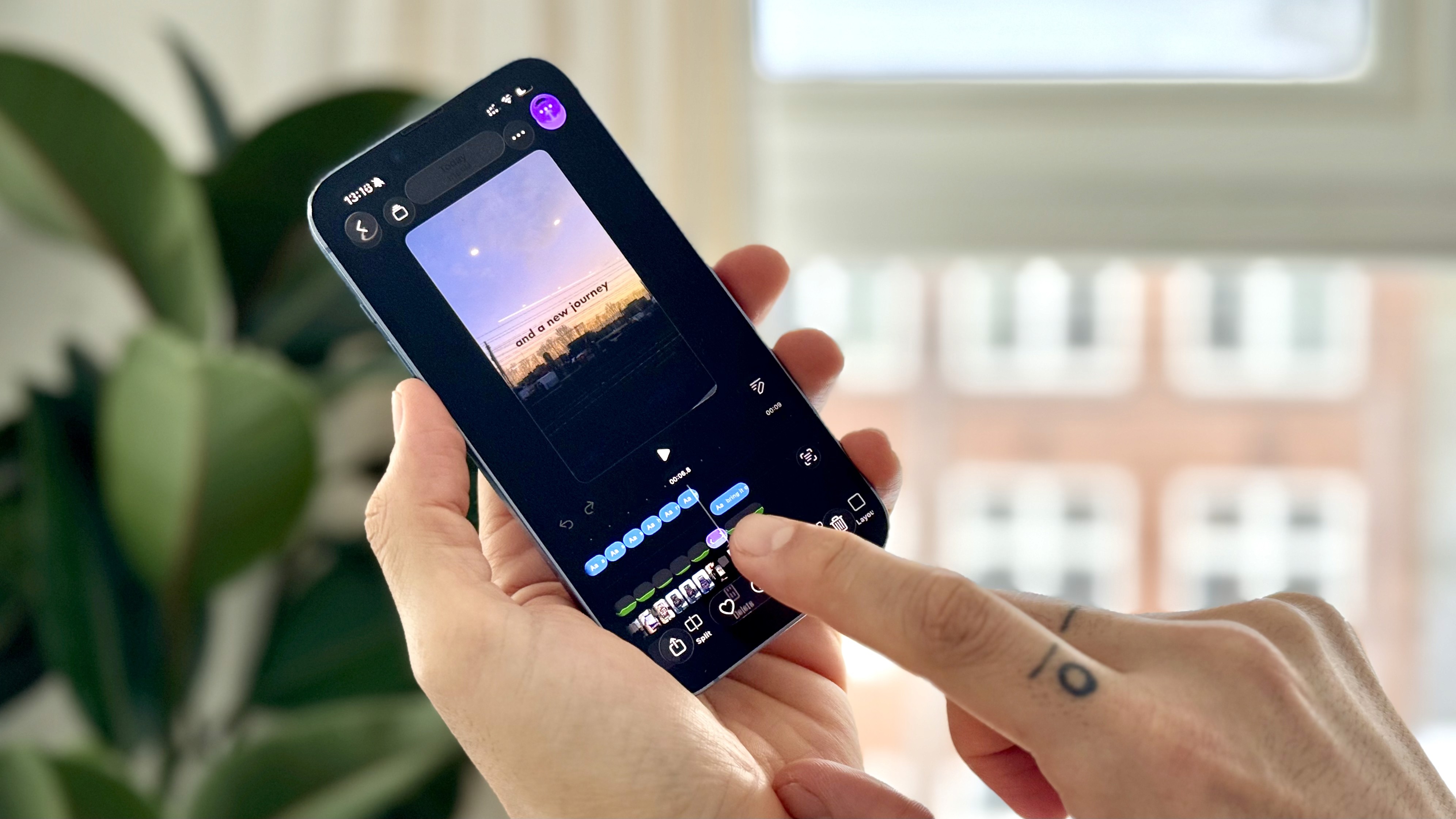
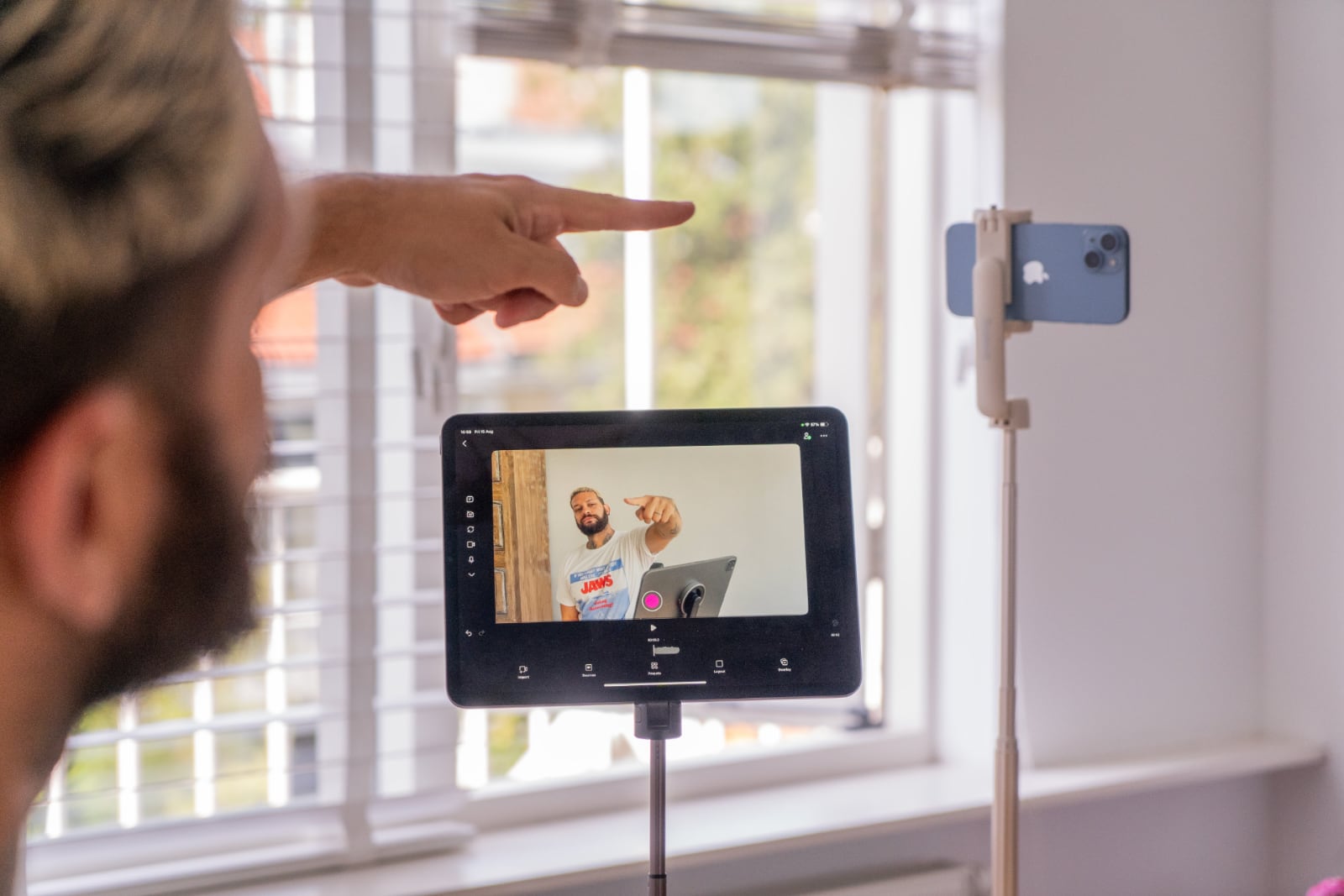
Tap Record to start filming. Every time you move to a new slide using the arrows, Detail creates a separate clip on the timeline.
This means each slide is recorded as its own segment, making it easy to trim, reorder, or adjust slides after recording.
Tap Stop when you’re finished. Your timeline will now contain multiple clips, one per slide.
Step 4: Change layouts and refine your video
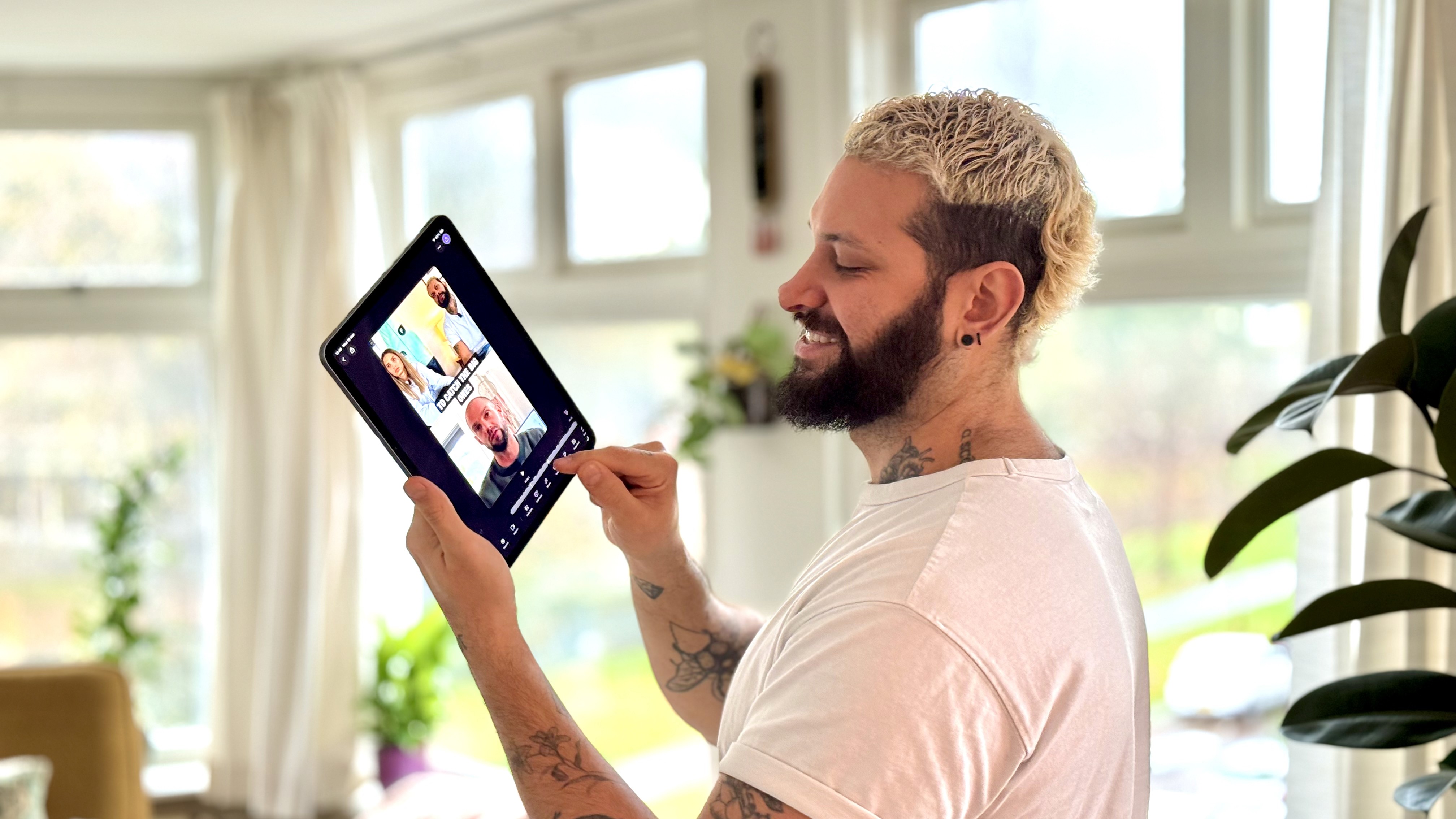
Tap any slide clip in the timeline to edit it. Open Layout to switch between split screen, picture-in-picture, or other layouts.
You can also enable Masking to remove your background and place yourself cleanly over your slides. Because slides are treated as individual clips, you can make layout changes even after recording.
Record hands-free with the teleprompter
If you need speaking notes, enable the teleprompter while presenting. Your script scrolls as you record, helping you stay on track.
You can also add slide tags to your script, like [slide1], [slide2], [slide3]. When these tags reach the top of the teleprompter, Detail automatically advances your slides in the background. This allows you to focus on delivery while Detail keeps your slides perfectly in sync.
Turn your presentation into shorts with Auto Edit
When you’re done recording, you can use Auto Edit to automatically create an edited long-form version of your presentation and short clips for social media.
Auto Edit analyzes your recording, tightens pacing, and generates multiple versions you can post as shorts, reels, or full videos.
Live stream with slides
You can also live stream your presentation directly from Detail. Present your slides in real time, stay on camera, and talk through your visuals while streaming to supported platforms.
Detail records a high-quality version of your presentation in the background, so you can reuse it later. Create your presentation in PowerPoint, Keynote, or Canva, export it as a PDF, and present live using your iPhone or iPad.
This workflow is ideal for presentations, tutorials, lectures, product demos, and live talks where visuals and timing matter.
Ready to try it? Get Detail for iOS and start recording presentations with slides on your iPhone or iPad.